MidiMuse_B
MIDIMUSE
A MIDI companion for OP-XYiPhone · Mac

Play an idea. Take it further.

Capture a loop. Explore four reorderable MIDI tools. Keep the takes you like, then send them back to your OP-XY.

Hands-on MIDI tools · runs on your device · no AI key
iOS 26 · macOS 26USB or Bluetooth MIDIiCloud sync
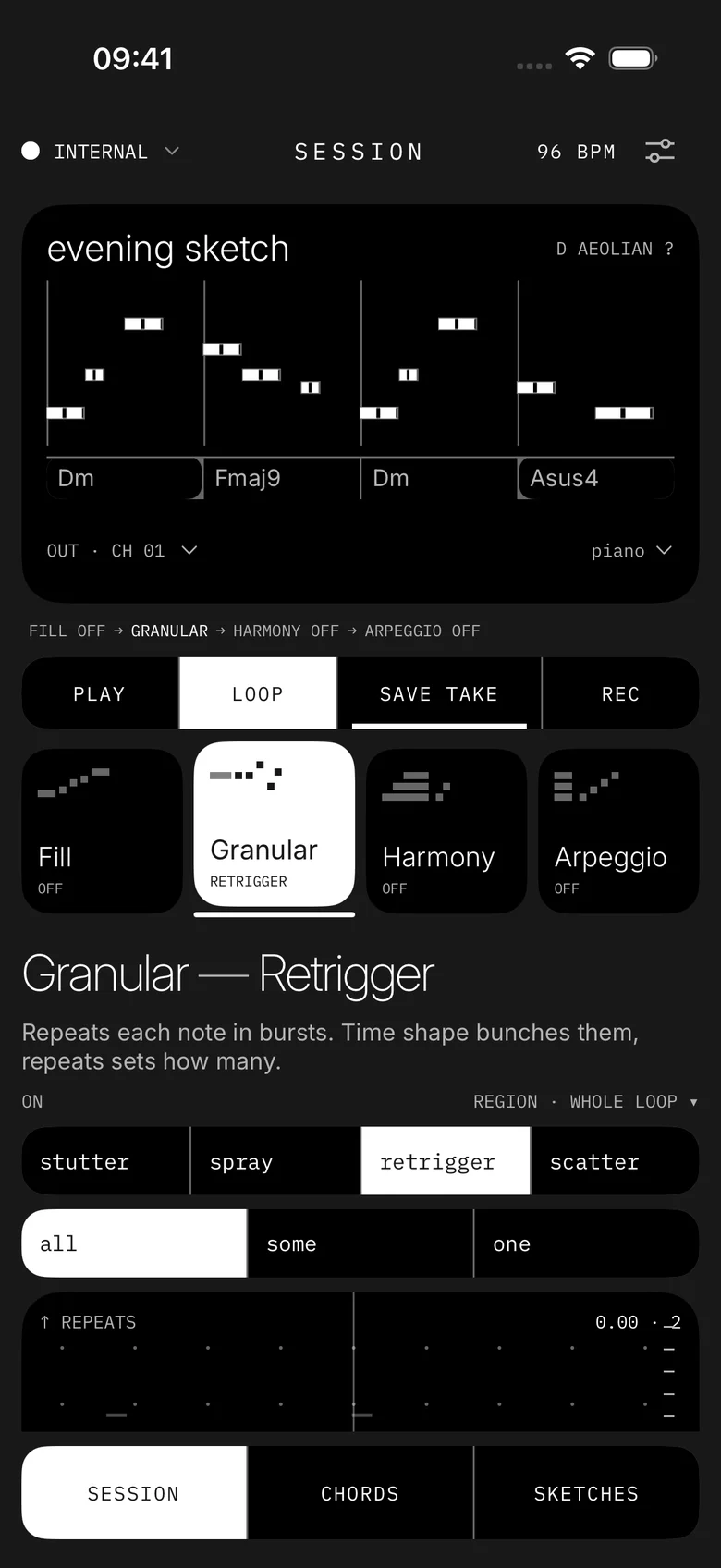
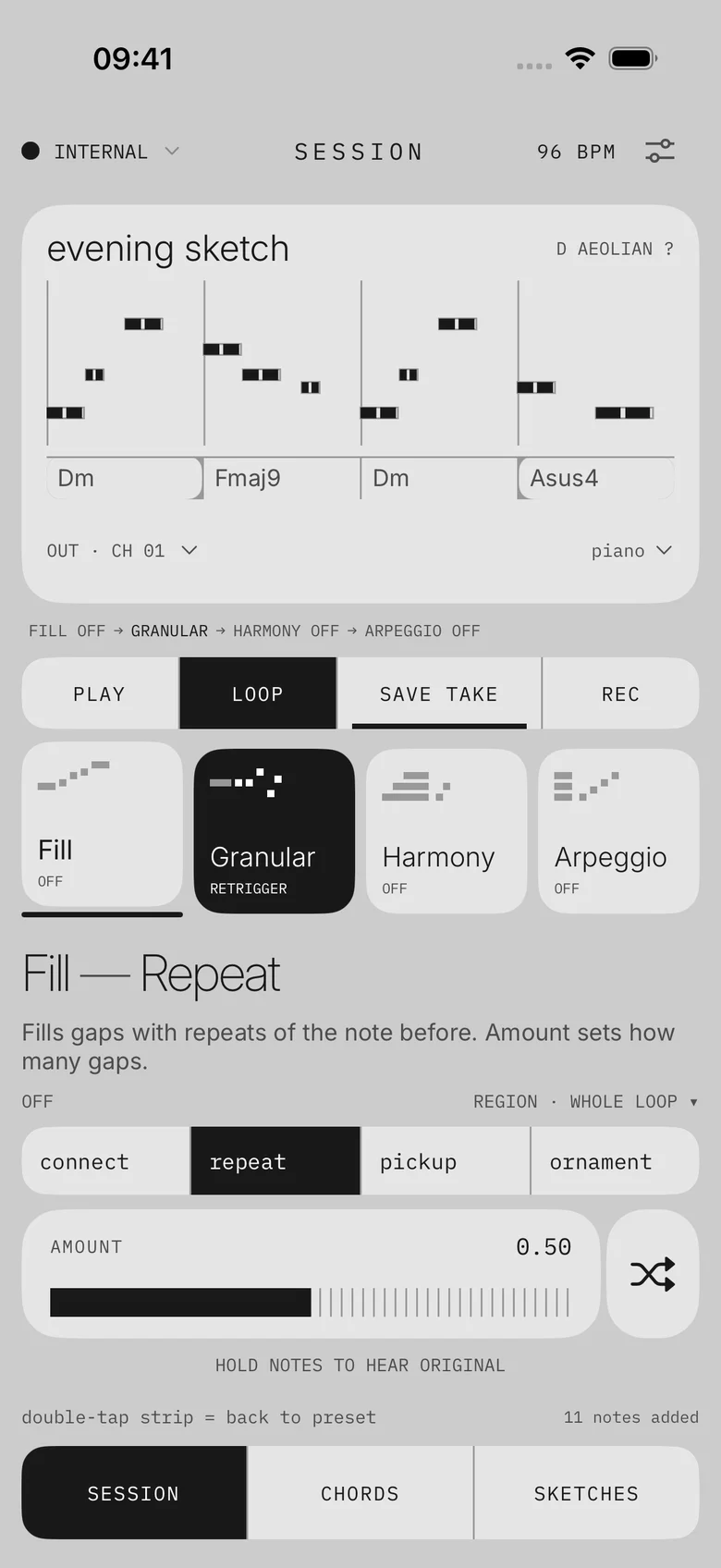
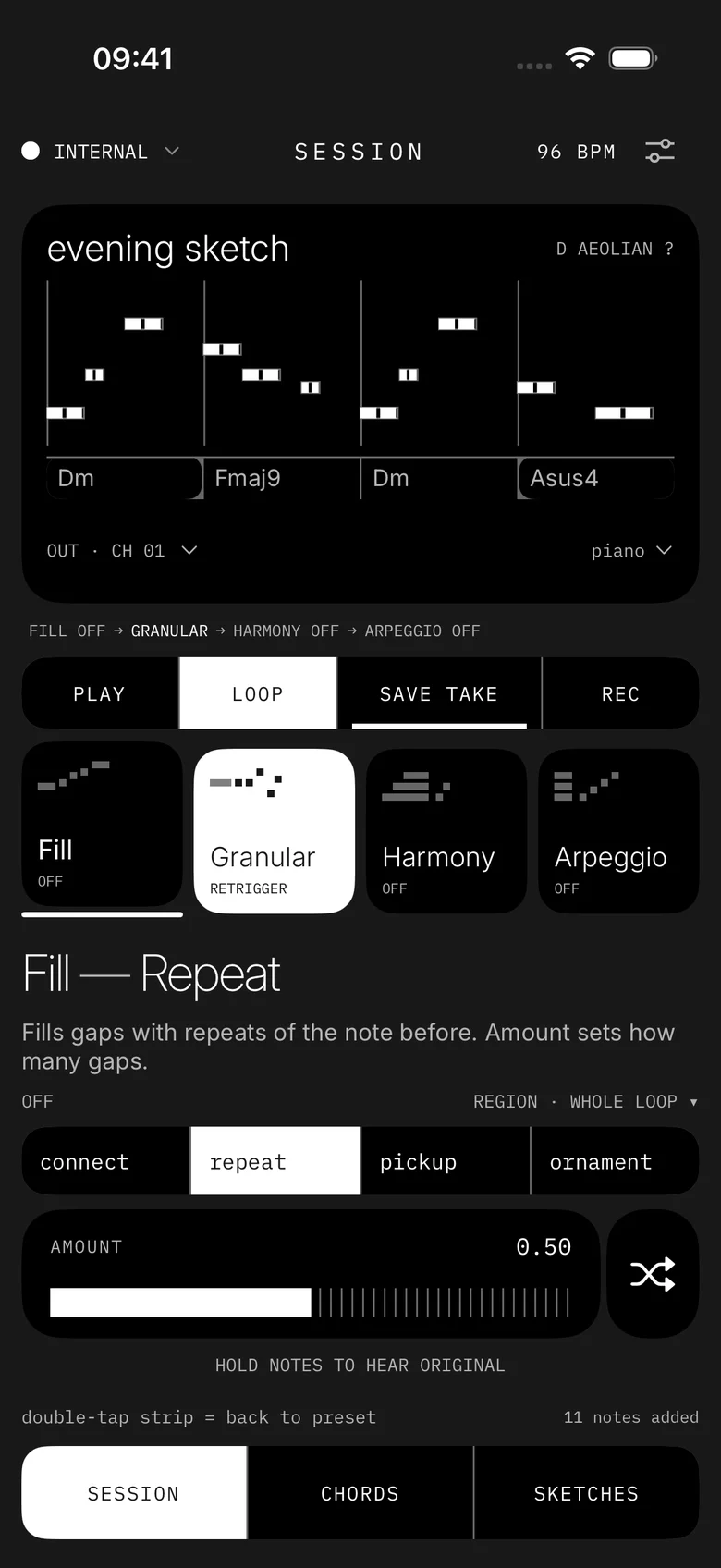
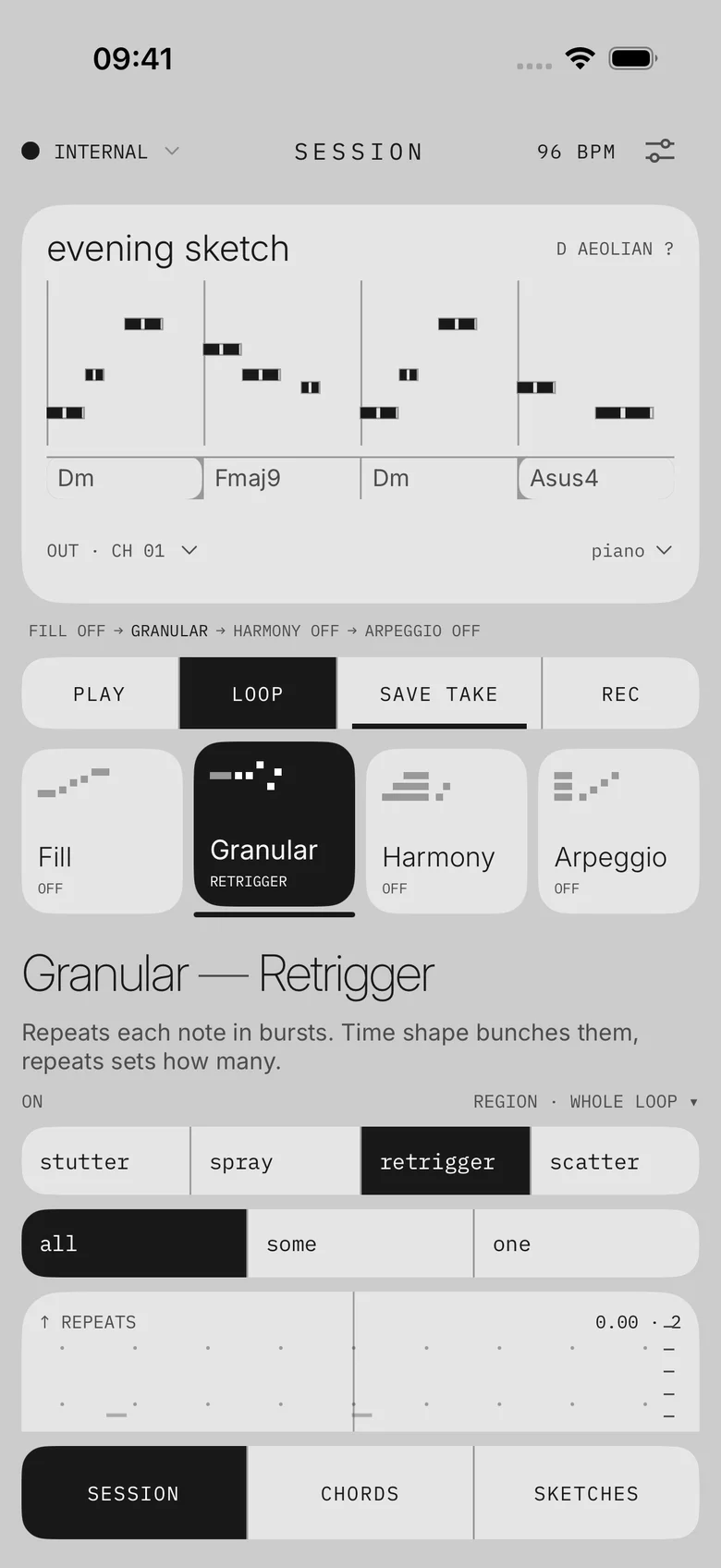
MidiMuse Session screen: the evening sketch in the note display with chords Dm, Fmaj9, Dm, Asus4, the play, loop, save take and rec buttons, and the four generator tiles with Granular · Retrigger selected.MidiMuse Session screen: the evening sketch in the note display with chords Dm, Fmaj9, Dm, Asus4, the play, loop, save take and rec buttons, and the four generator tiles with Granular · Retrigger selected.
how it works

Capture. Reshape. Send.

Your idea stays in the note display the whole time, so you hear and see every change together.

01 · capture

Start with something you played.

Connect over USB or Bluetooth, choose 1, 2, 4 or 8 bars or free, and play. Capture starts on your first note, and chords come through too.

The note display with a captured sketch, its chord lane and the MIDI out channel.The note display with a captured sketch, its chord lane and the MIDI out channel.
02 · reshape

Find another direction without losing the original.

Run the loop through Fill, Granular, Harmony and Arpeggio. Change a setting and the loop keeps playing.

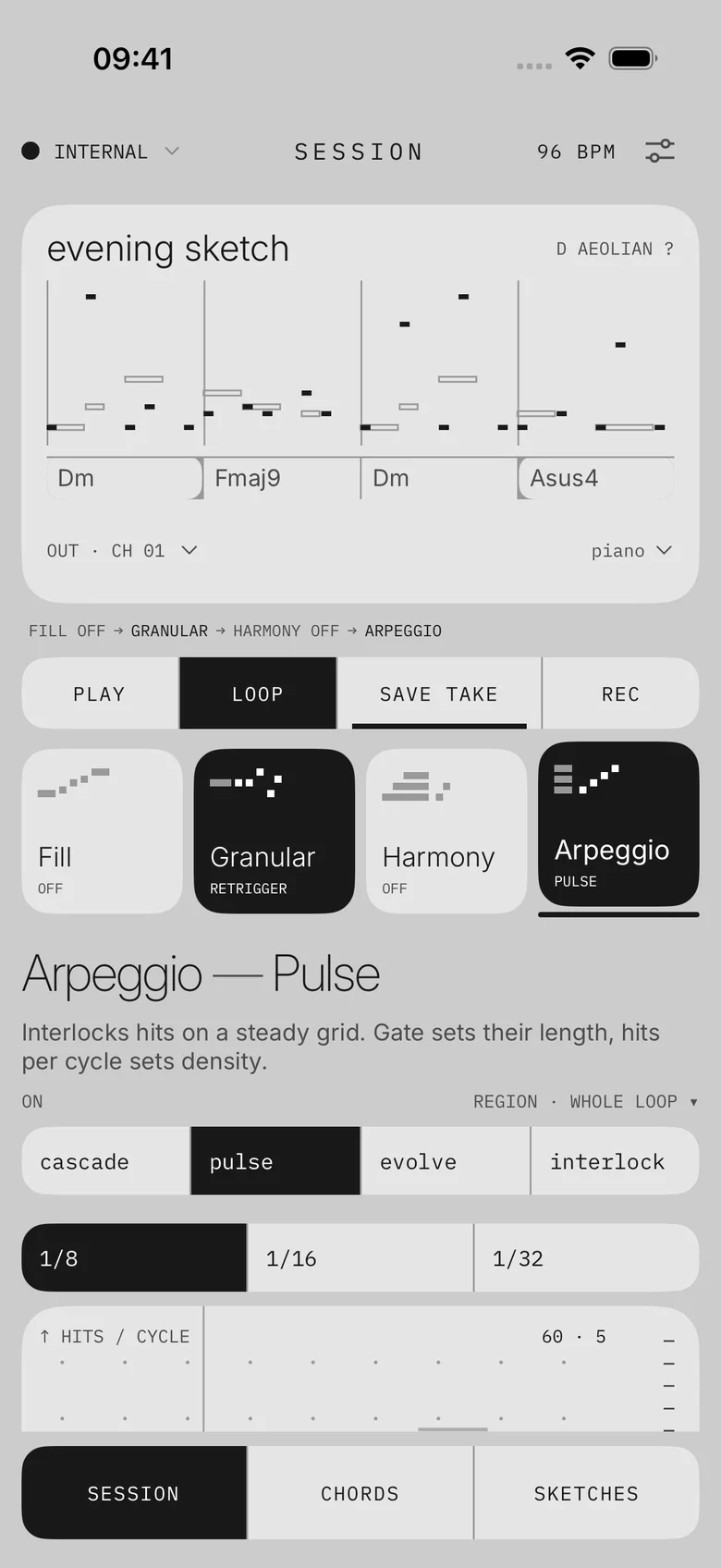
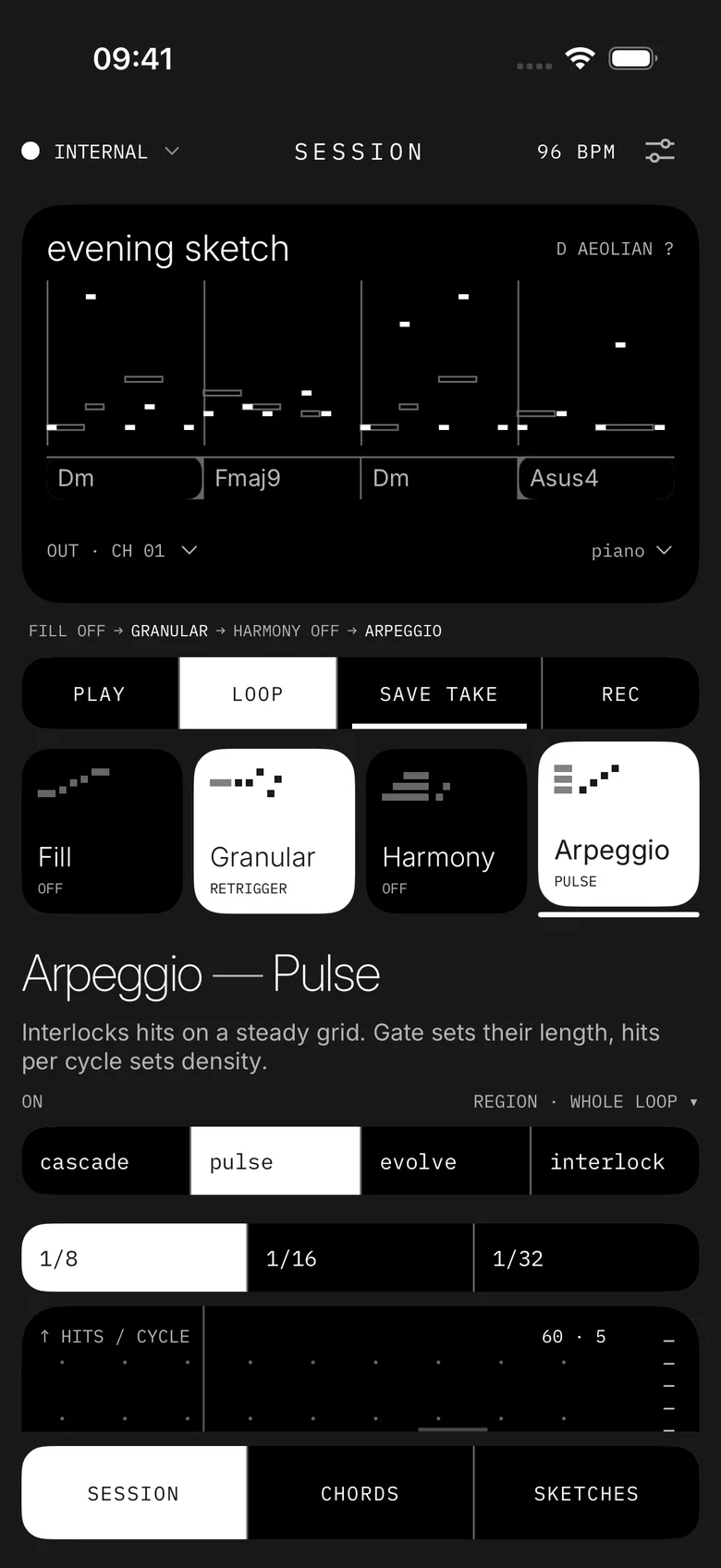
The four generator tiles with Arpeggio · Pulse selected and its mode and option rows.The four generator tiles with Arpeggio · Pulse selected and its mode and option rows.
03 · send

Bring the take back into your setup.

Keep the takes you like. Play one pass into your armed OP-XY, or export MIDI for your DAW.
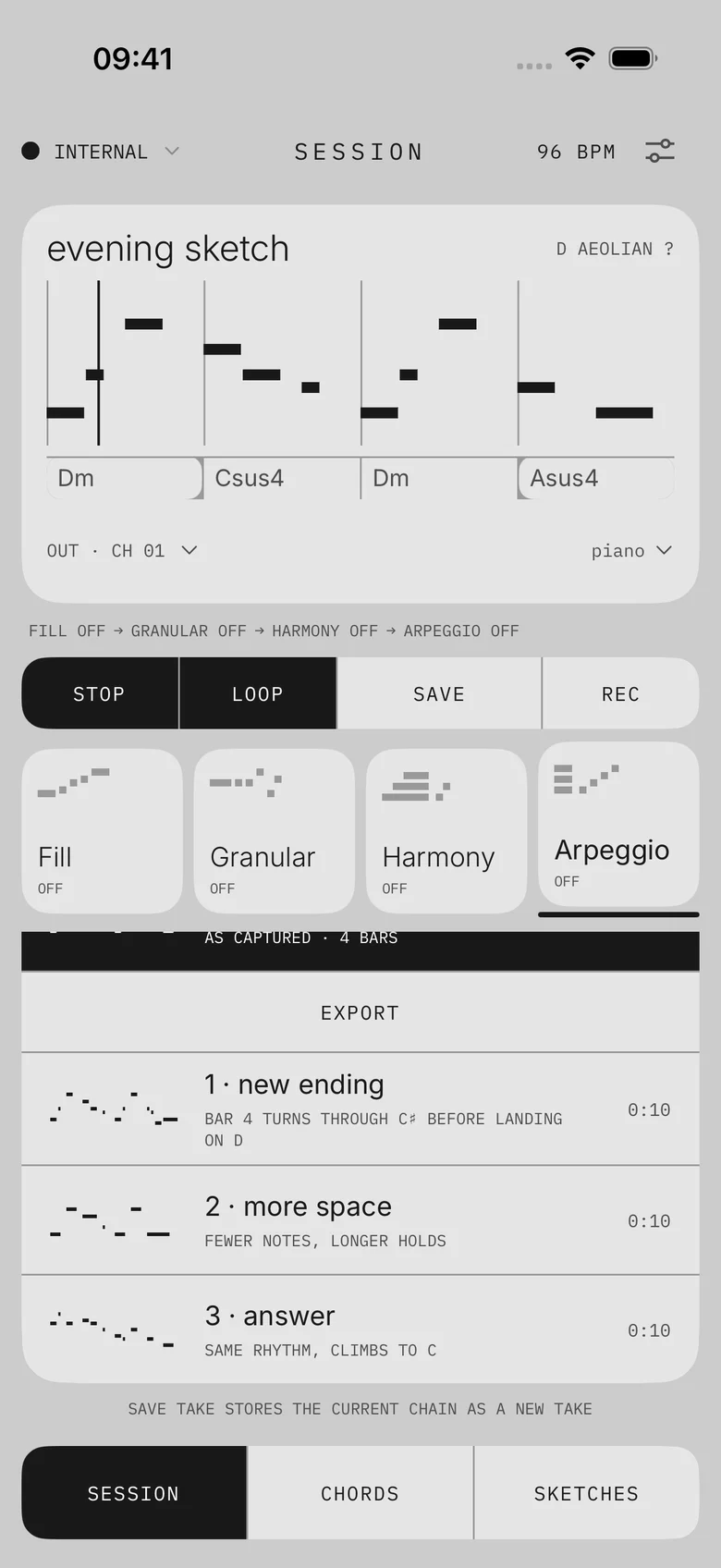
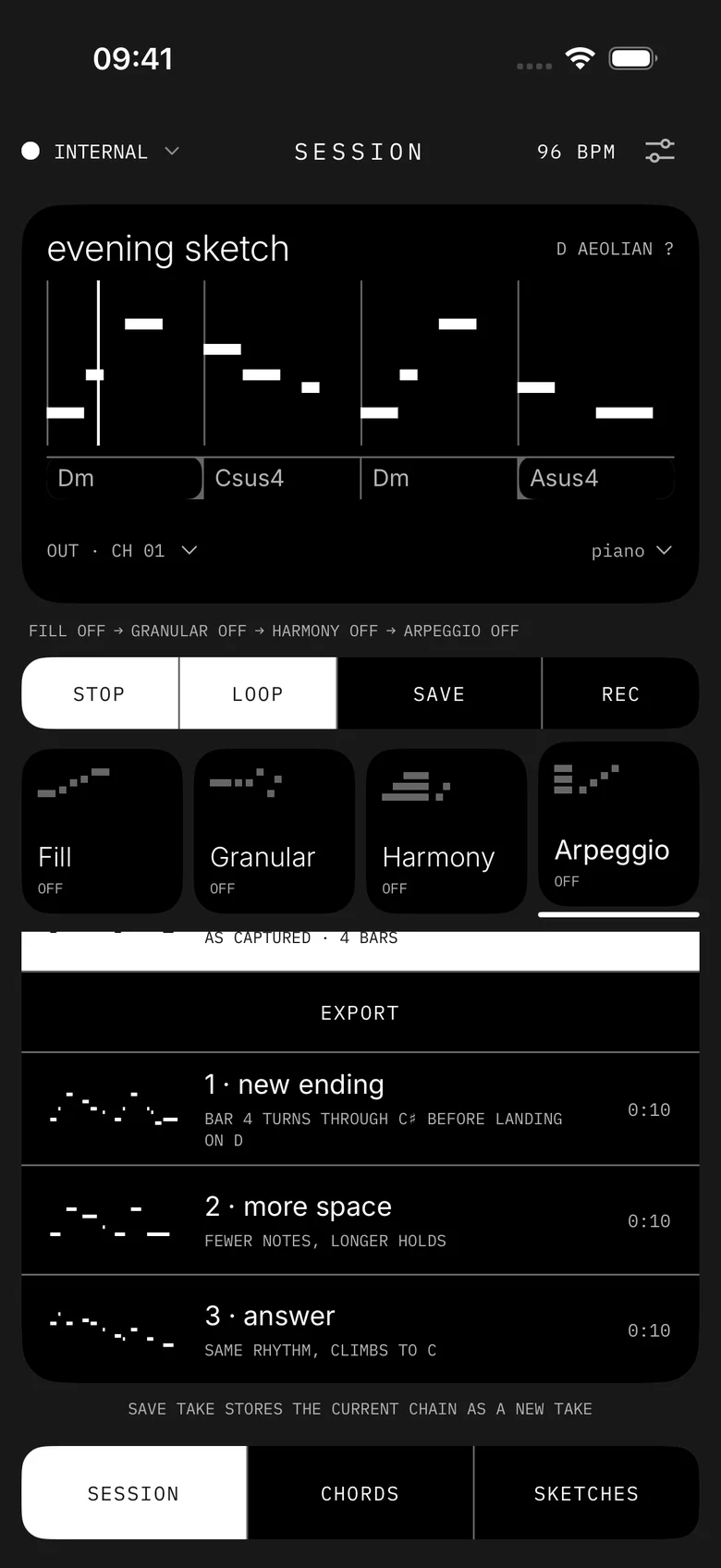
Takes: the original plus three takes with note thumbnails, export and save take.Takes: the original plus three takes with note thumbnails, export and save take.
midi tools · four families · try it

Four tools. Your order.

Switch on any combination, drag them into the order you want, and each stage works on the result of the one before. Press play and change things while it loops.

the app · session
demostopped
tap a family to edit · tap again to switch it on or off · hold and drag to reorder (keyboard: shift + ← →) · hold the notes to hear the original
The slow orbit demo sketch from the app, played with the app’s Soft Keys and Warm Synth sounds. The modes are simplified browser sketches. Outlines are the source, filled notes are the result. The app’s processing and sounds go further.
takes · order matters

Four takes from one sketch. Load one, then keep changing it.

filled · raised

In the app, a filled tile means the generator is on. The raised tile is the one you’re editing.

tap · tap again

Tap a tool to open its controls. Tap it again to switch it on or off.

hold and drag

Reorder the tools. A line shows where it will land.

keeps playing

Changes land while the loop runs, at the same position.

chords

Play chords over it.

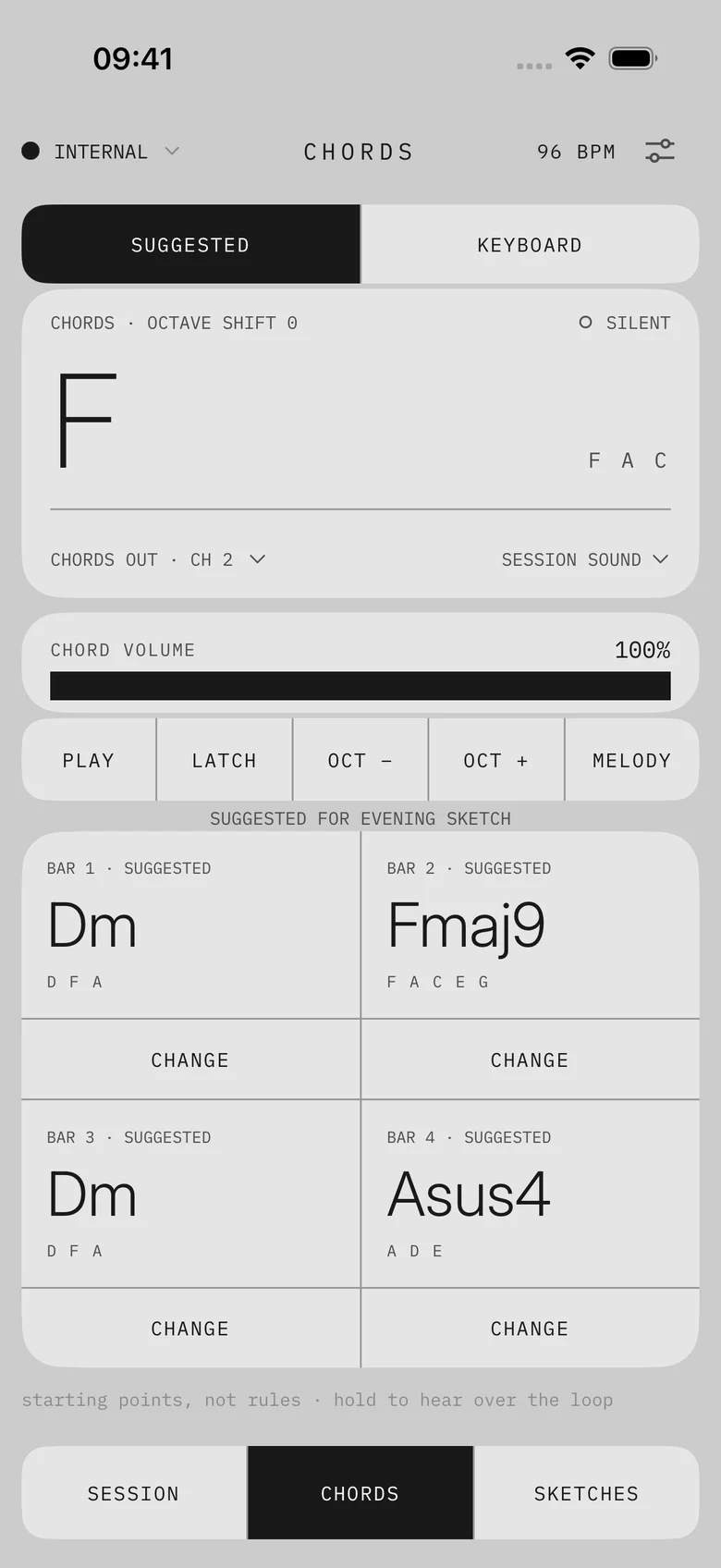
Suggested chords follow your loop bar by bar. Or play your own on the keyboard, sideways for two octaves.
try it · chords · octave shift 0silent
F6f a c d
hold a pad · glide between them
play with melody runs the demo loop from the tools section with these chords on top
  • suggestedA chord for each bar, based on your notes. Hold and glide between pads; quick taps retrigger.
  • play with melodyThe chords play along with the loop on their own channel.
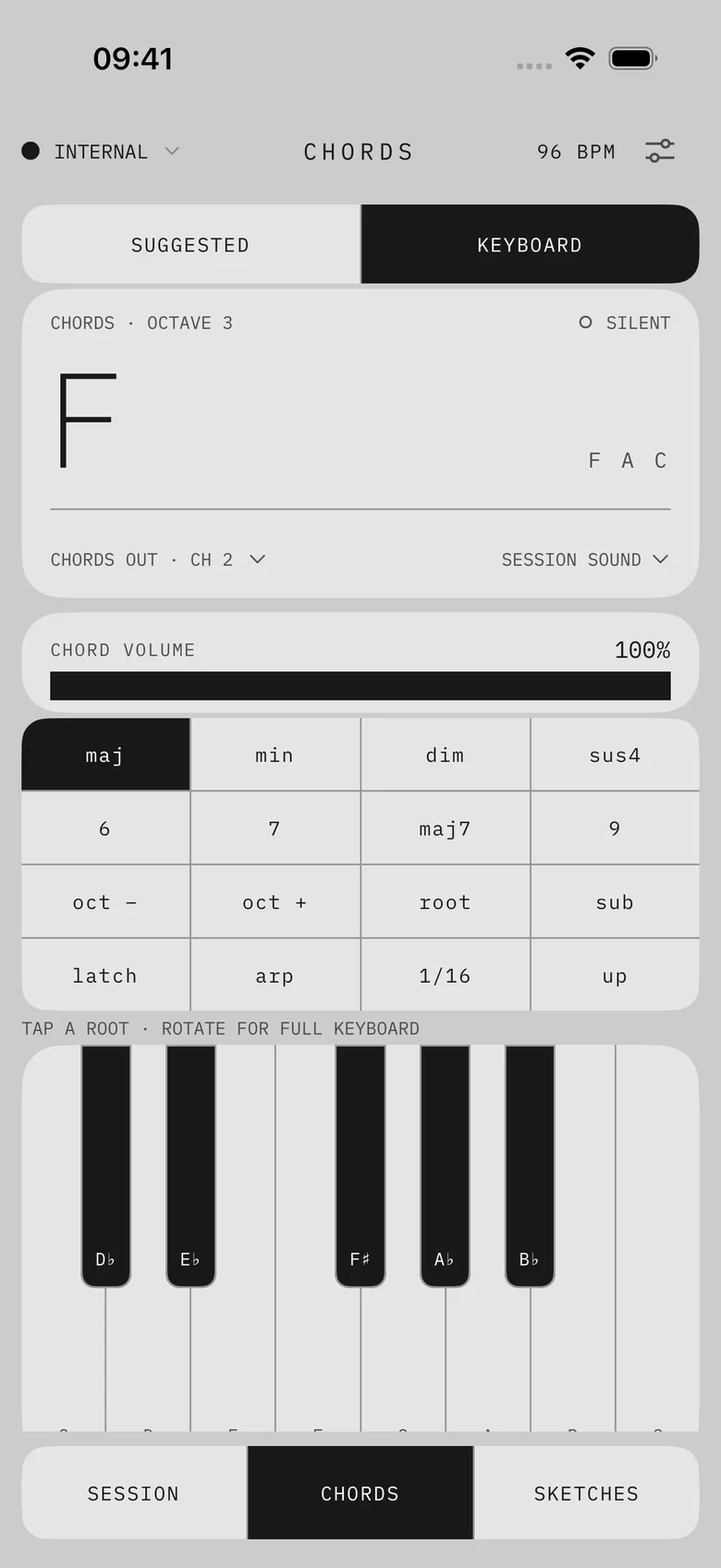
  • keyboardMaj, min, dim, sus4, sixths, sevenths, ninths, inversions and a sub octave. Glide across keys.
  • latch · arpHold a chord, then turn it into a pattern: up, down, up–down, center–out or random, with gate, swing and accents.
  • own soundPick a separate chord sound and balance it with its own volume.
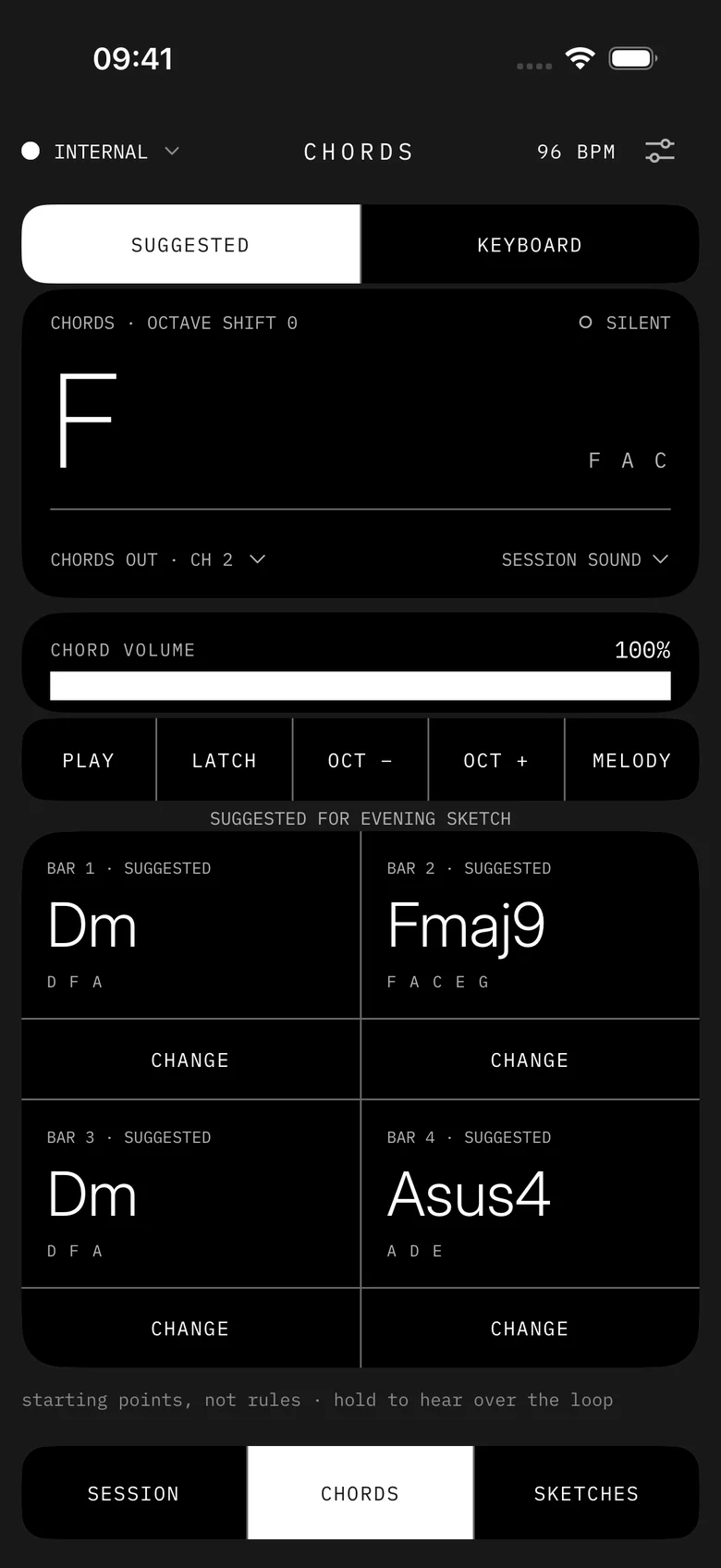
Suggested chords: F sounding, chord volume, play, latch, octave and melody buttons, and bar cards Dm, Fmaj9, Dm, Asus4.Suggested chords: F sounding, chord volume, play, latch, octave and melody buttons, and bar cards Dm, Fmaj9, Dm, Asus4.
the app · suggested chords follow the loop
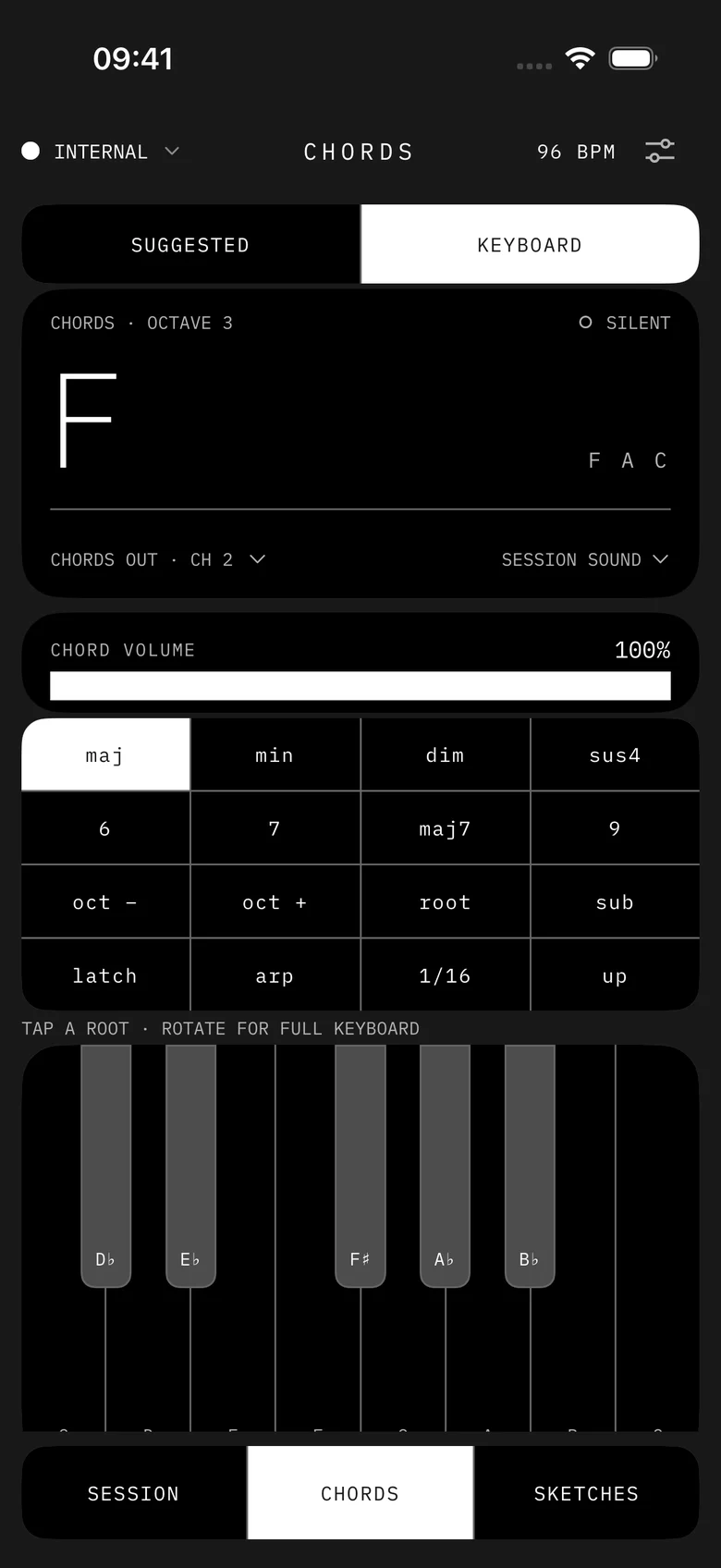
Chord keyboard: F silent, a grid of chord qualities and options, and a one-octave keyboard with the chord tones marked.Chord keyboard: F silent, a grid of chord qualities and options, and a one-octave keyboard with the chord tones marked.
keyboard · quality, extension, latch, arp
Fill · Repeat with the amount strip and the generator tiles.Fill · Repeat with the amount strip and the generator tiles.
fill · repeat · strips where a mode needs them
harmony · bloom

Changes the take

Builds chord voicings into the take’s notes.

suggested chords

Plays alongside

An accompaniment layer during playback. It stays separate from the take.

keyboard

You play it

A chord instrument for trying ideas or picking a bar’s chord yourself.

internal engine

Keep working away from the hardware.

Six built-in sounds play your saved sketches and takes offline, so you can keep reshaping on the train. Capturing new ideas needs a MIDI source.

piano
warm synth
round bass
glass pluck
soft keys
electronic kit
80%volume
20%reverb

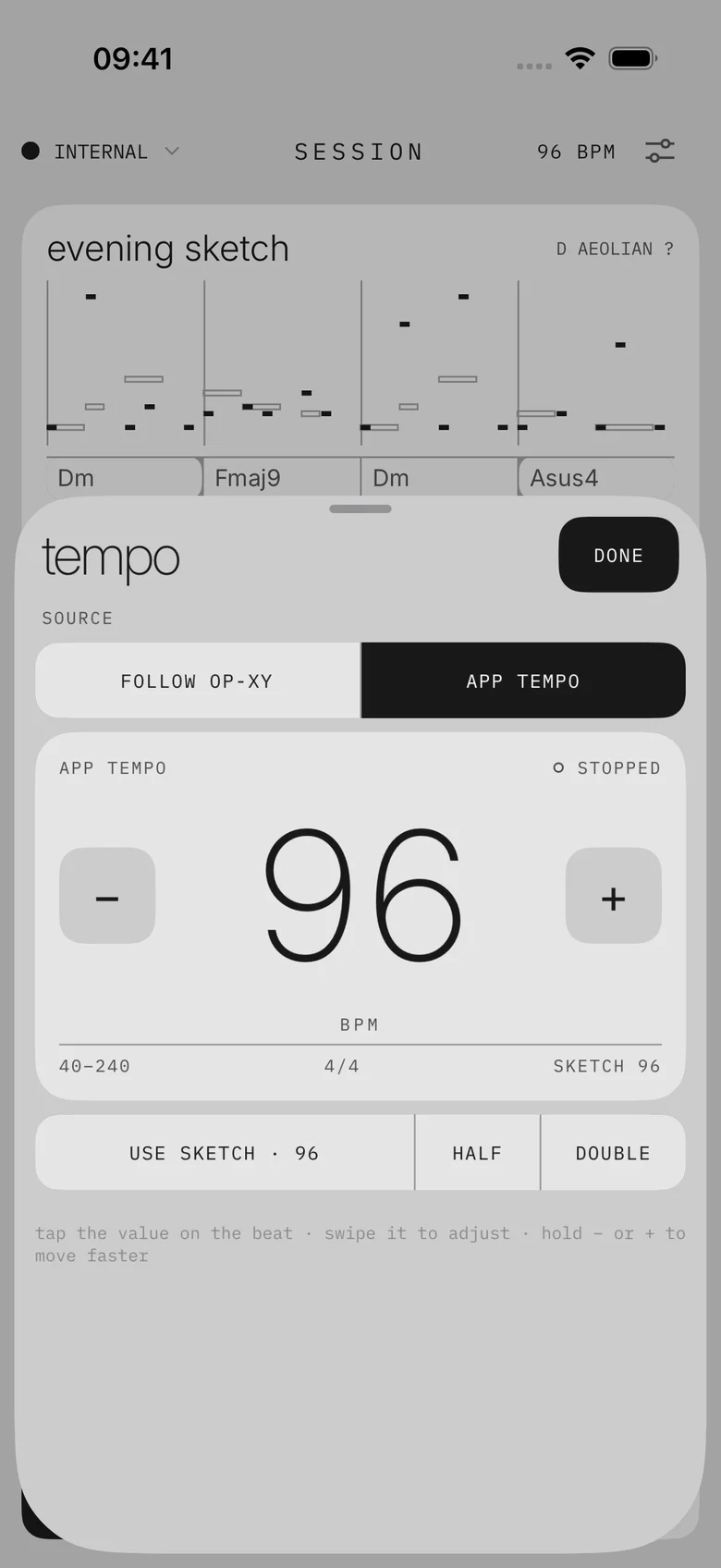
Each sound remembers its own volume and reverb. Choose Internal Engine and the sounds play even with your OP-XY still connected. Tempo follows the OP-XY clock, or set your own, with tap tempo.
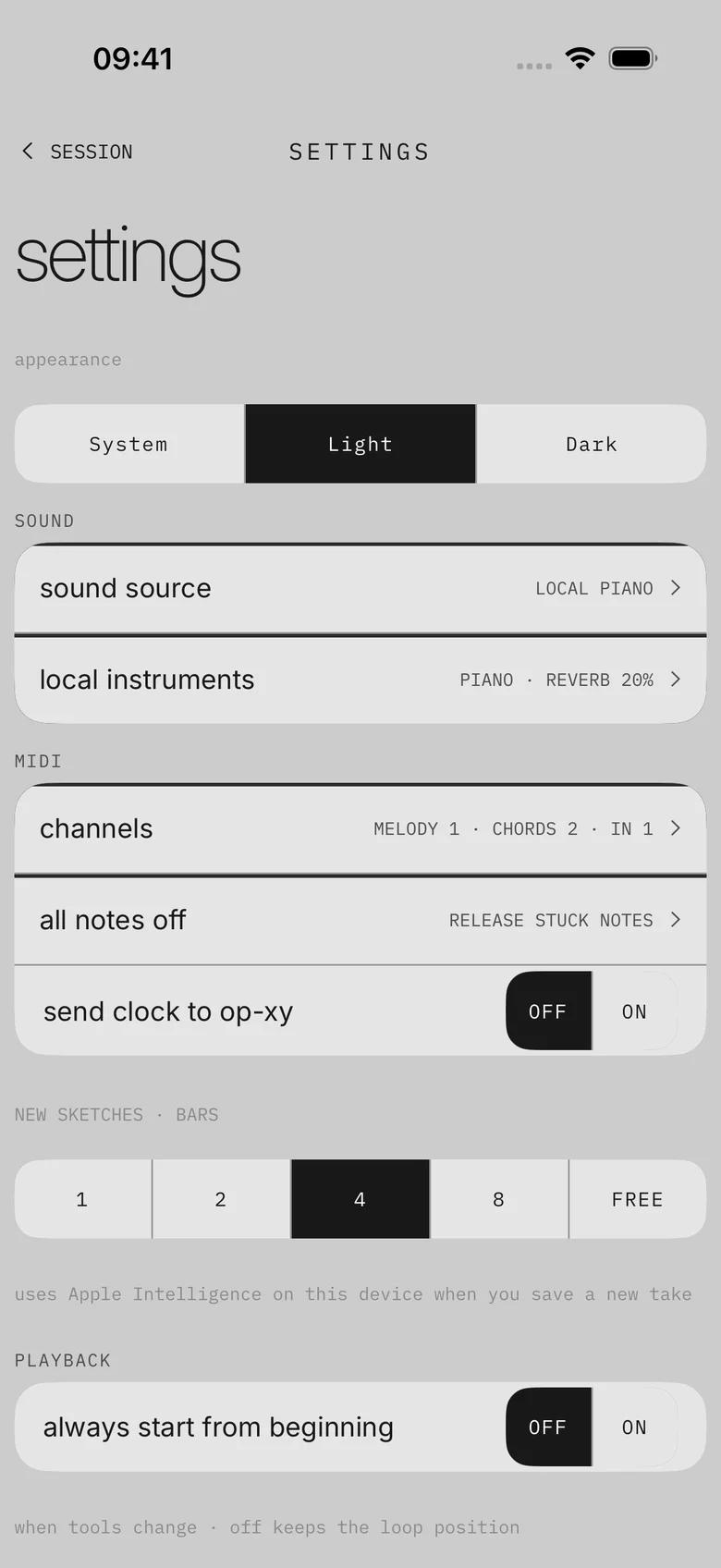
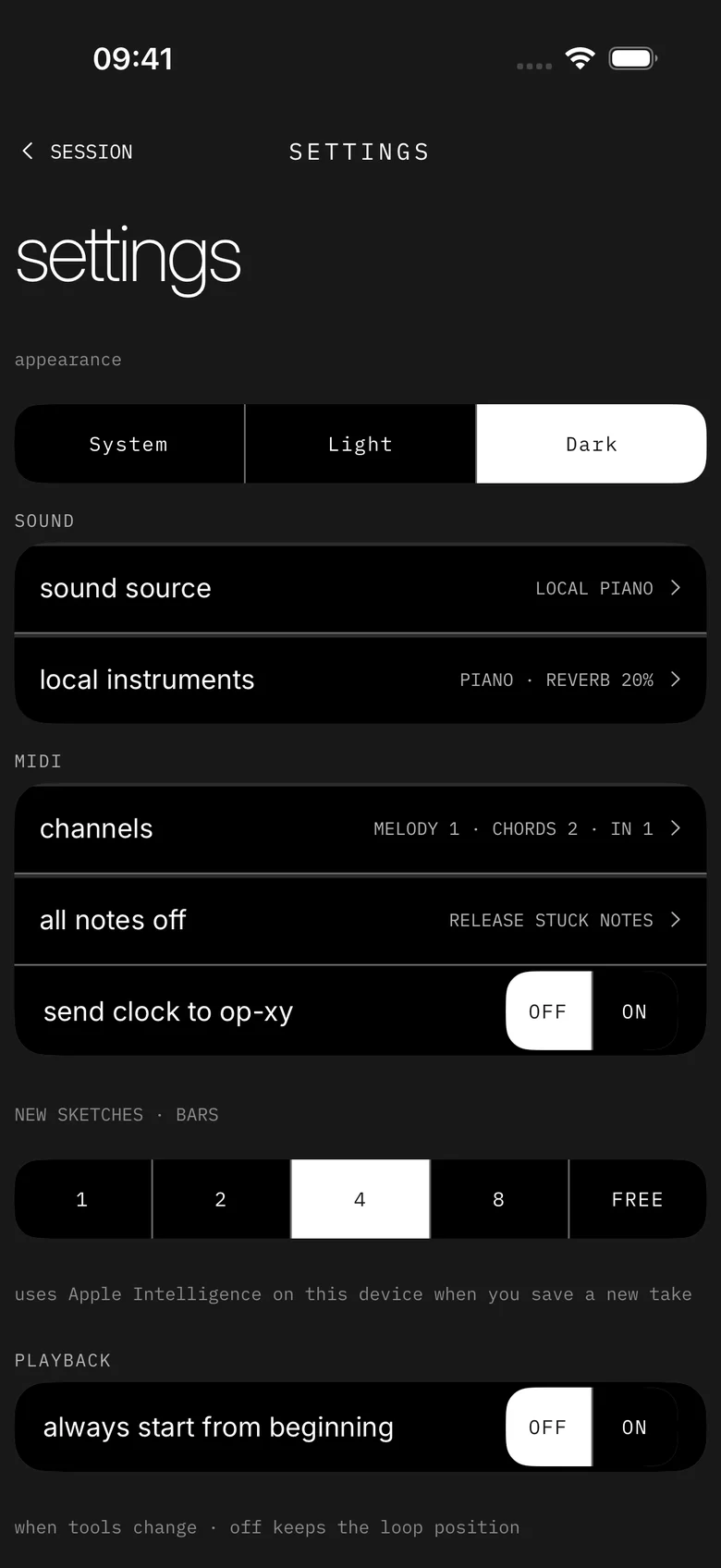
Settings: appearance, sound source, local instruments, MIDI channels, all notes off, send clock, new sketch length and playback.Settings: appearance, sound source, local instruments, MIDI channels, all notes off, send clock, new sketch length and playback.
settings
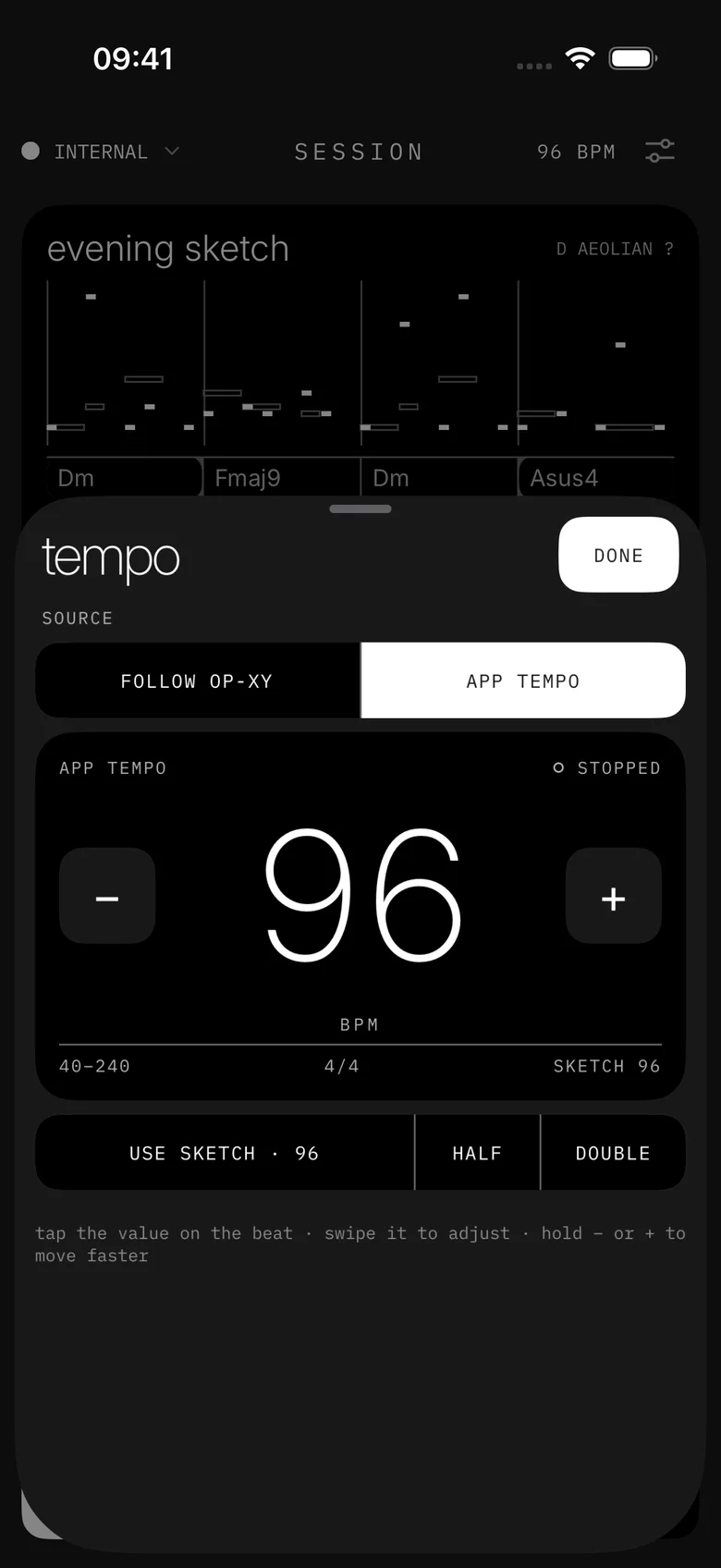
Tempo sheet over Session: follow op-xy or app tempo, 96 bpm with minus and plus, use sketch, half and double.Tempo sheet over Session: follow op-xy or app tempo, 96 bpm with minus and plus, use sketch, half and double.
tempo · follow op-xy or set your own
on the mac

More room on the Mac.

Session shows a taller note display with the tools on the left and your takes on the right. The chord keyboard grows with the window, up to three octaves. Optional iCloud sync keeps sketches and takes in step with your iPhone.
session

Tools, notes and takes side by side

keyboard

Up to three octaves, sized to the window

icloud

Optional sync between iPhone and Mac

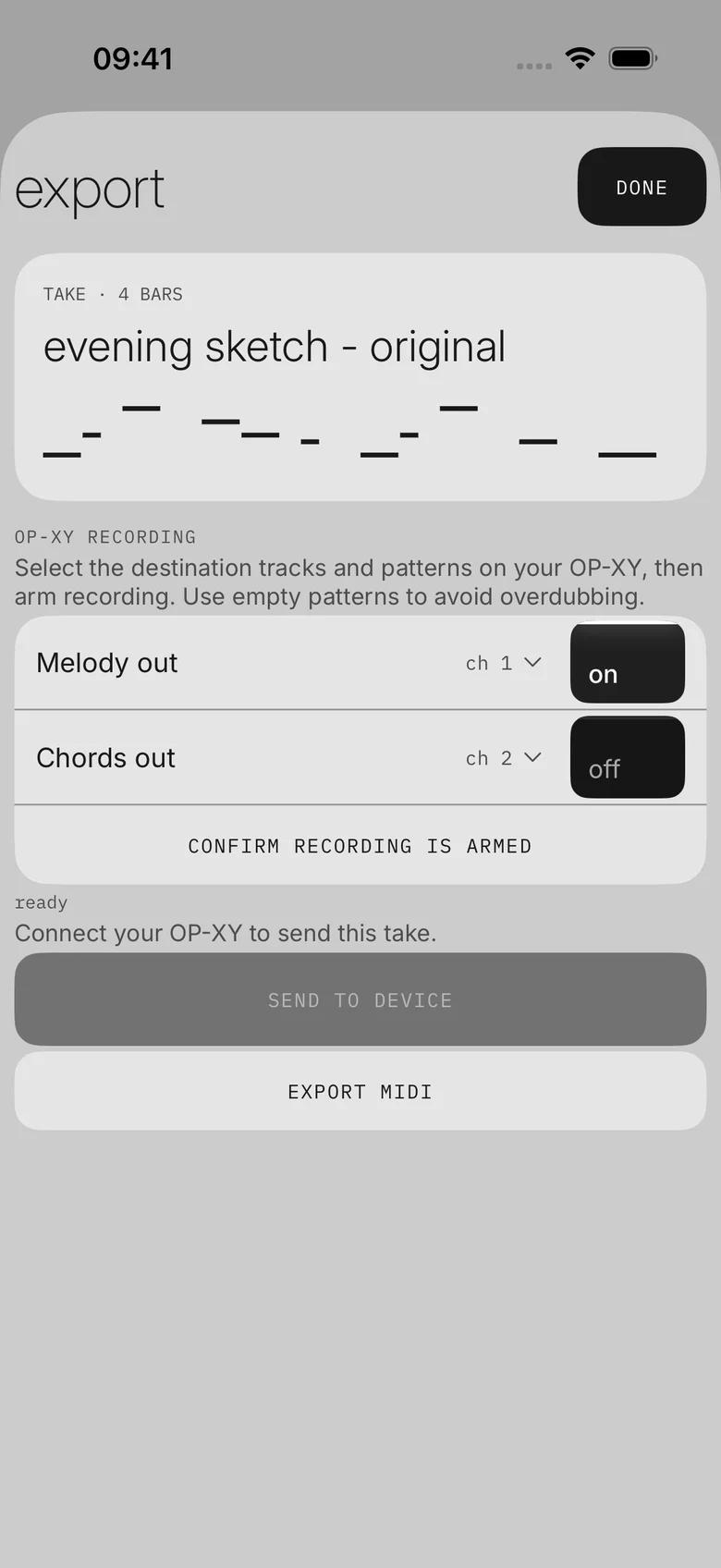
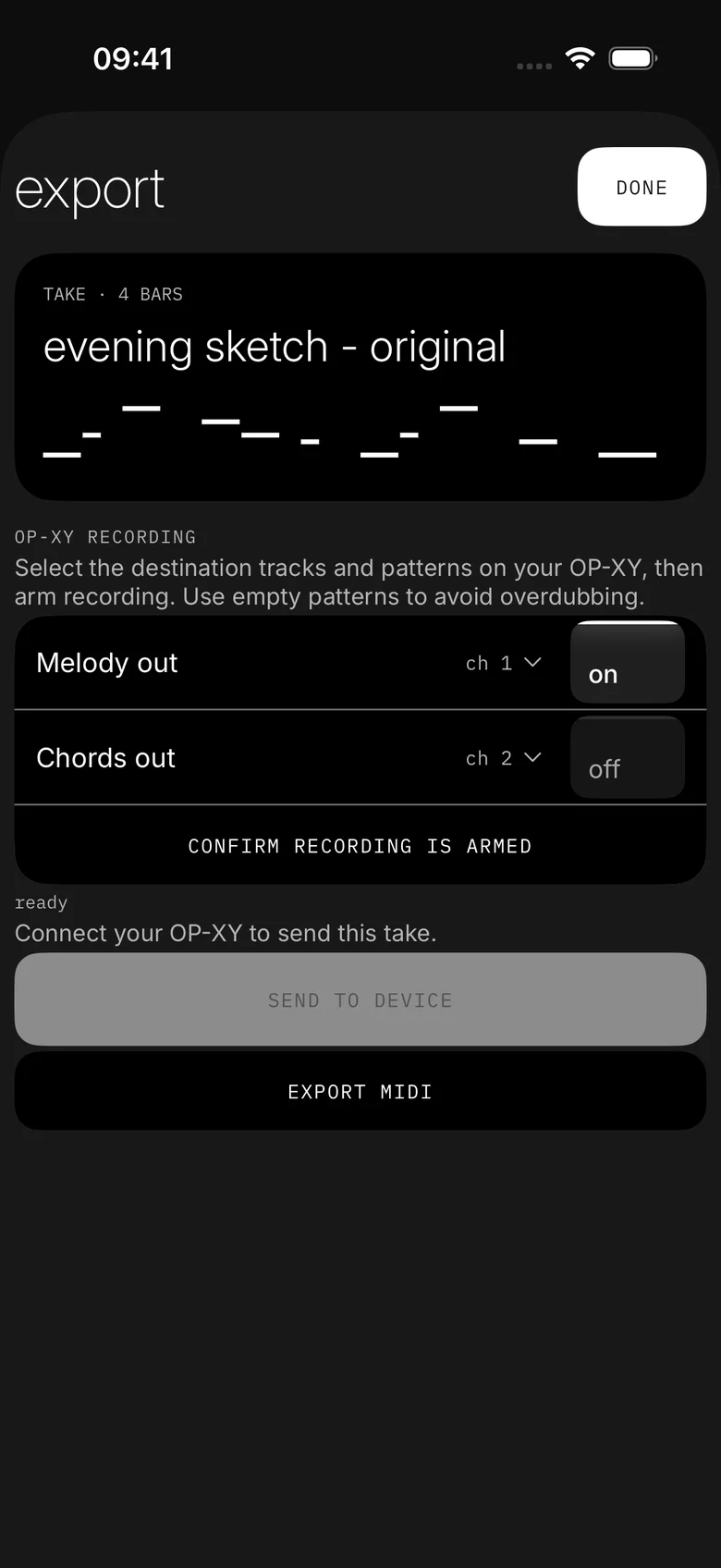
Export: melody out and chords out, confirm recording is armed, send to device and export MIDI.Export: melody out and chords out, confirm recording is armed, send to device and export MIDI.
export · send to device or save midi
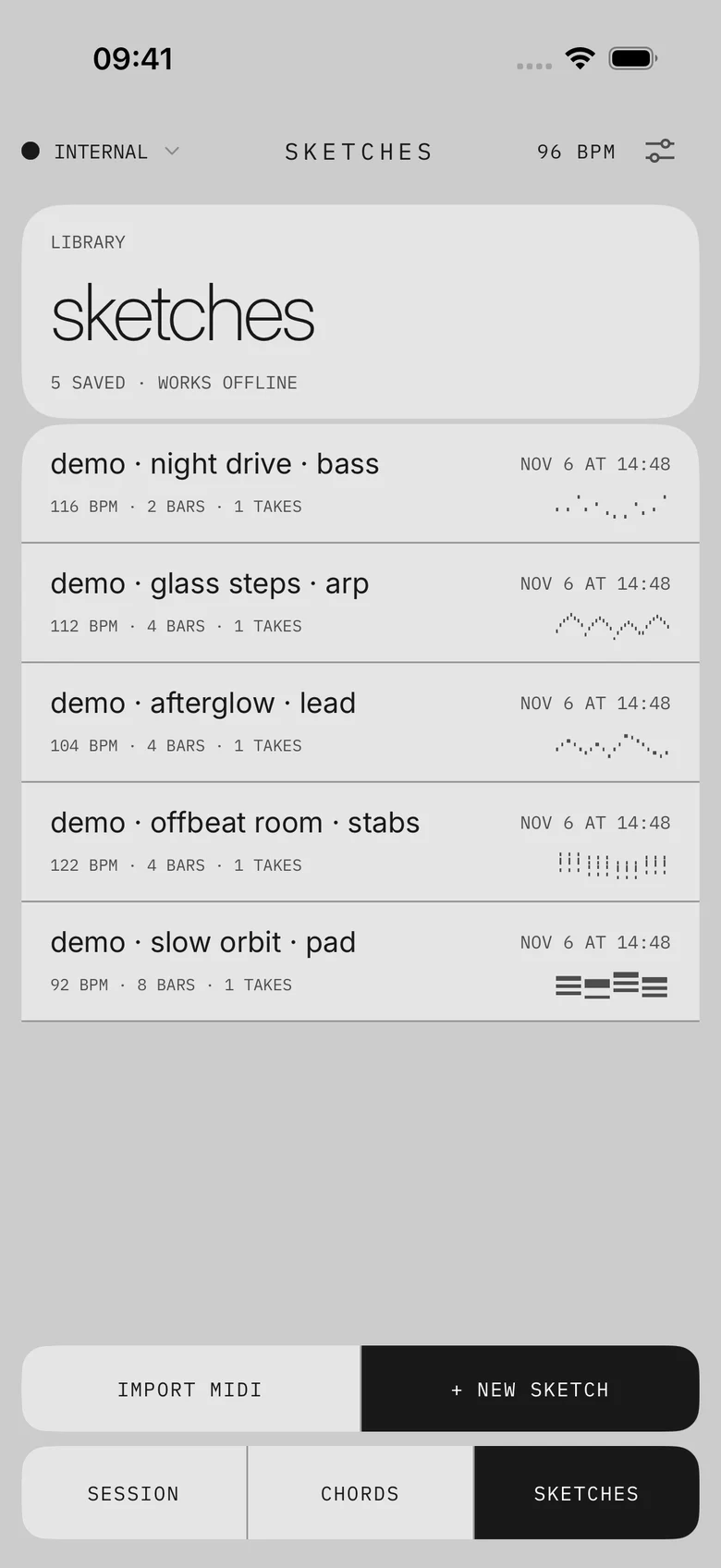
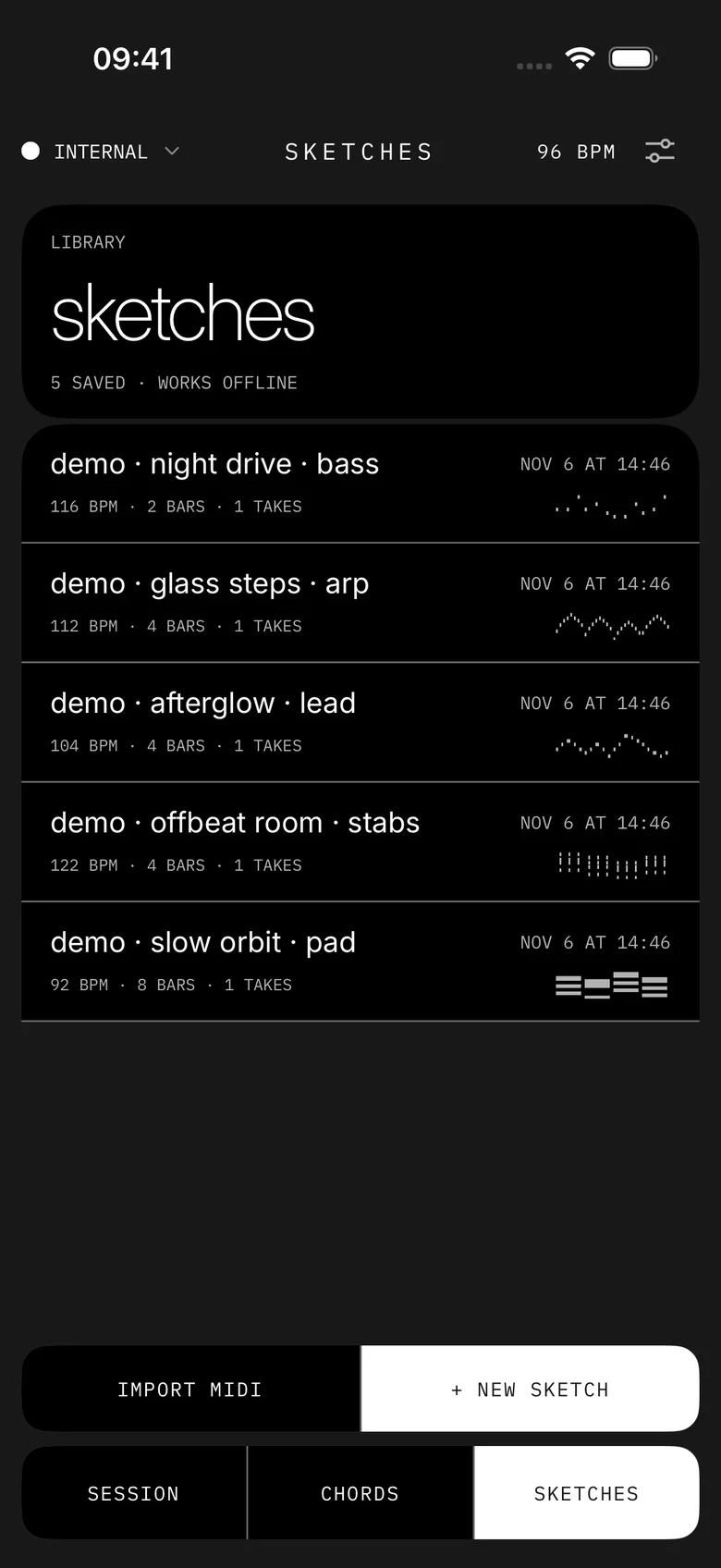
Sketch library: five demo sketches with tempo, length, takes and note thumbnails, plus import midi and new sketch.Sketch library: five demo sketches with tempo, length, takes and note thumbnails, plus import midi and new sketch.
sketches · import and export midi
back into your setup

One pass into your OP-XY, or a MIDI file for your DAW.

  1. On the OP-XY, pick the track and pattern, set the length and arm recording.
  2. Select a take and choose send to device.
  3. Switch on melody out and/or chords out and set their channels.
  4. Tap send pattern. MidiMuse plays the take once into the recorder. If the OP-XY clock is running it starts on the next bar, otherwise right away.

Incoming notes overdub what’s already there, so use an empty pattern for a clean copy. MidiMuse doesn’t arm the OP-XY or write pattern files.

Export MIDI saves a sketch as a .mid file with the original, your takes and the chords on separate tracks.

requirements · faq

What you need, and what to expect.

iphone

iOS 26

mac

macOS 26

midi

OP-XY or another MIDI source over USB or Bluetooth

Do I need an OP-XY for everything?

No. Other MIDI sources can be captured too, and saved sketches play on the built-in sounds without any hardware. MidiMuse is designed around the OP-XY.

Does it process audio?

No. It works with MIDI notes only. Granular breaks up notes, not samples, and nothing is recorded from a microphone.

Does it need AI or the cloud?

No. The tools run on your device. No AI key, account or internet connection required.

Can I move between iPhone and Mac?

Yes, if you want to. Optional iCloud sync keeps your sketches and takes in step between your devices, in your own iCloud. Leave it off and everything stays on the device.

Will it overwrite my original?

No. 0 · original is always kept, and every take is saved separately with its recipe.

Can it install pattern files on the OP-XY?

No. Send to device plays one pass into a recorder you arm on the OP-XY. It can overdub, so start from an empty pattern for a clean copy.

Can I use my takes in a DAW?

Yes. Export a sketch as a MIDI file and keep going in any MIDI-capable tool. It works the other way too: import a .mid file into Sketches.

Light or dark?

Both. MidiMuse follows your device’s appearance, with a light grey panel look and a black one.

MidiMuse app icon

MidiMuse for iPhone and Mac.

Coming soon to the App Store